
Configure Your Course for Content Experiments#
This section provides instructions for configuring your course to use content experiments.
Enable Content Experiments#
To enable content experiments in your course, you add split_test to the
Advanced Module List in Advanced Settings.
Note
split_test is the internal edX Platform name for a content experiment.
From the Settings menu, select Advanced Settings.
On the Advanced Settings page, locate Advanced Module List.
In the Advanced Module List field, add
"split_test". Be sure that you include the double quotation marks.If you have multiple values, ensure that they are separated by commas (
,).For example, the text in the Advanced Module List field may resemble the following:
[
  "lti_consumer",
  "word_cloud",
  "split_test"
]
Select Save Changes.
Set up Group Configurations in edX Studio#
Note
You must enable content experiments before you can set up group configurations.
To set up group configurations, on the Settings menu, select Group Configurations. The Group Configurations page opens.
From this page you can create, edit, and delete group configurations. You can also view content experiments that use a group configuration.
Create a Group Configuration#
You can create a group configuration at any time.
On the Group Configurations page, under Experiment Groups, select New Experiment Group. The following page opens:
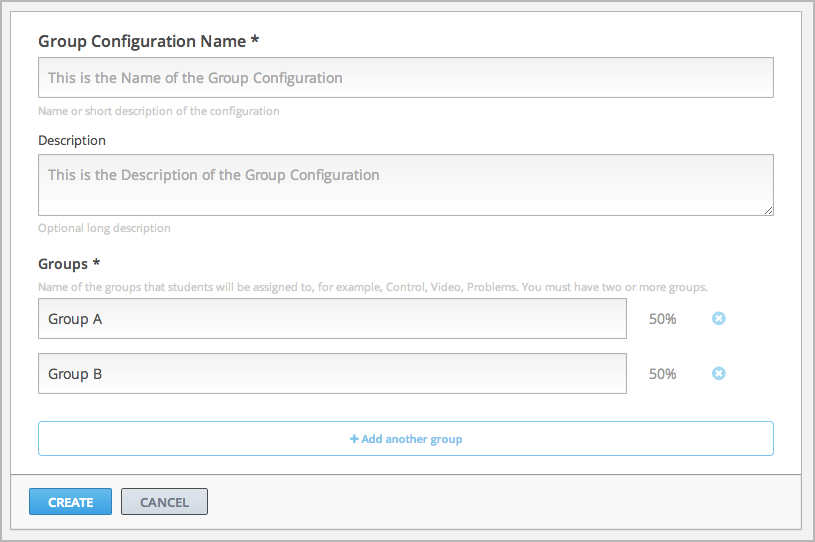
Enter a name in the Group Configuration Name field. Use a meaningful name, because you will select from group configuration names when you create content experiments. Learners do not see the group configuration name.
Optionally, enter a description for the new group configuration.
By default, a new configuration already contains two groups. Modify the groups or add and delete groups as needed. A group configuration must have at least one group.
Modify group names as needed. You see group names in the unit page in Studio, but group names are not visible to learners.
Select Add another group to include another group as part of the configuration.
Select the X to the right of an existing group to remove it from the configuration. A group configuration must have at least one group.
Select Create to save the new group configuration.
The group configuration is then listed in the page. You can see the number of groups that the configuration contains, as well as whether the configuration is in use in the course:

Edit a Group Configuration#
Important
You can change the name of a group configuration at any time. However, before you modify any other characteristics of a group configuration that is currently used in a running course, review Guidelines for Modifying Group Configurations.
On the Group Configurations page, hover over the group configuration and select Edit.

The following page opens:
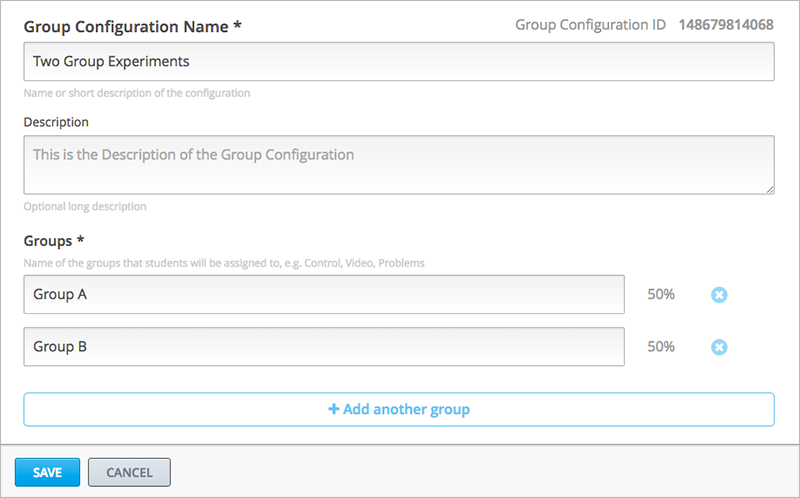
On the Edit a Group Configuration page modify the name and description as needed.
Modify groups in the configuration as needed. See Create a Group Configuration for details.
Select Save to save your changes.
Delete a Group Configuration#
Note
You can only delete a group configuration that is not currently used in a content experiment. You cannot delete a group configuration that is used in a content experiment.
On the Group Configurations page, hover over the group configuration and select the Delete icon.

When prompted to confirm the deletion, select Delete.
View Experiments that Use a Group Configuration#
You can view the content experiments that use each of your group configurations.
On the Group Configurations page, select the name of a group to see its details. You see links to the content experiments that use this group configuration.
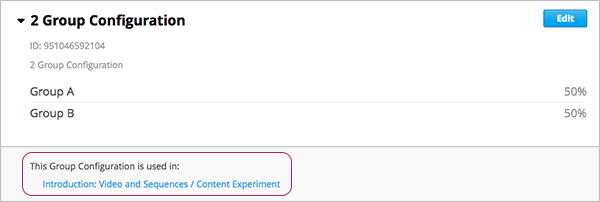
Select a link to go to the unit that contains the content experiment.
View a Group Configuration from an Experiment#
When working with a content experiment, you can view details about the group configuration used by that experiment in two ways.
In a unit that contains a content experiment, in the content experiment block, select the name of the group configuration.

At the top of the content experiment page, select the name of the group configuration.

In both cases, the group configuration opens.
You can use the link in the group configuration to return to the unit that contains the content experiment.
See also
Offering Different Content to Different Learner Groups (concept)
Overview of Content Experiments (concept)
Experiment Group Configurations (reference)
Add a Content Experiment in OLX (how-to)