
Add a Component#
To add a component to the unit, follow these steps.
In Studio, open the page for the unit.
Under Add New Component, select a component type. The default component types are discussion, HTML, problem, and video.
For more information, see the documentation for the specific component type that you want to work with.
After you add a component, it is not visible to learners until you publish the unit.
Edit a Component#
To edit a component, you select Edit in the component’s title bar in Studio.
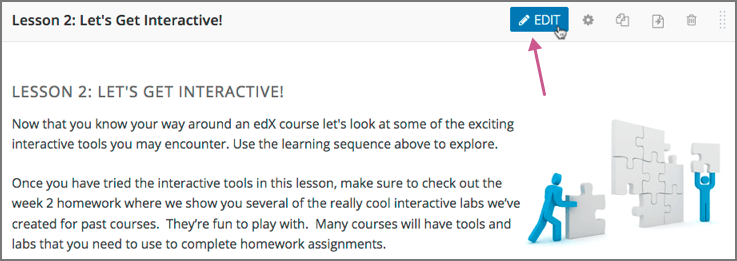
Then, follow instructions for the type of component you are editing.
After you edit a component, the changes are not visible to learners until you publish the unit.
Set the Display Name for a Component#
The display name identifies the component. This name appears as a heading above the component in the LMS, and it identifies the component for you in reporting and analytics systems.
The following illustration shows the display name of a problem in Studio and in the LMS.

Unique, descriptive display names help you and your learners identify components quickly and accurately.
To set the display name for a component, follow these steps.
Edit the component. A dialog box opens.
For a discussion or video component, the dialog box opens to the list of settings, including the Display Name field.
For an HTML or problem component, the dialog box opens to an editing view. Select Settings to show the list of settings, including the Display Name field.
Edit the Display Name field.
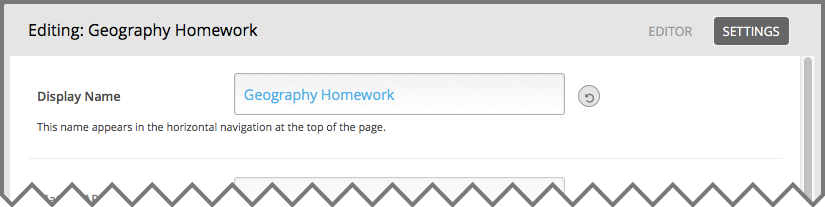
Select Save.
Different types of components have different fields in the Settings dialog box, but all of them have a Display Name field.
Duplicate a Component#
When you duplicate a component, a new copy of that component is added directly beneath the first component. You can then modify the duplicate. In many cases, duplicating a component and editing the copy is a faster way to create new content.
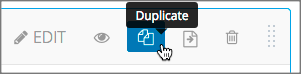
To duplicate a component, select the Duplicate icon in the component header.
Then, follow instructions for the type of component you are editing.
After you duplicate a component, the new component is not visible to learners until you publish the unit.
Note
Duplicating content experiments after you have configured them is not supported.
Delete a Component#
Caution
Be sure you want to delete the component. You cannot undo the deletion.
To delete a component, follow these steps.
Select the Delete icon in the component header.

When you receive the confirmation prompt, select Yes, delete this component.
After you delete a component in Studio, the component remains visible to learners until you publish the unit.