
Reorganizing Components#
You can drag and drop components to a new position within their current unit, or you can move components from one unit to another unit.
Reorganize Components Within a Unit#
To reorganize components within their current unit, you drag and drop components in the same way that you can drag and drop units, subsections, and sections on the Course Outline page. For more information, see Reorganize the Course Outline.
For components that consist of nested components (for example, a content experiment), you can also use drag and drop to move a child component into a different parent component, if both parents are expanded. For example, you can select the video component that is in Child Component A and drag it into Child Component B. Select the video component, and as you drag it into Child Component B, release the mouse button when a dashed outline of the component you are moving appears in the new location.

You can also drag a child component outside of a parent, so that the child moves to the same level as the parent.
Move Components to Other Units#
To move components to another unit in the course outline, follow these steps.
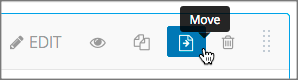
Select the Move icon for the component that you want to move.
A dialog box appears that displays your course outline tree, starting at the section level.
In the Move dialog box, navigate to the location where you want to move the component by selecting the section, the subsection, and then the unit.

The Move button is enabled only when your selected location is a valid level and location for moving your component. For example, when you move a component, the Move button is enabled only when you have navigated to a unit to which the component can be moved.
Select Move.
The component moves to the new location. A success message appears that provides options to go to the new location or to undo the move.
Note
If the old and new locations of the component that you moved were previously published, your changes are not reflected in the learner’s view of the course until you republish the affected units.