
Paste without Formatting in a Text Component#
Many course authoring teams rely on copying and pasting content from documents such as Google docs or Microsoft Word. Correct formatting in Studio and the LMS can be most easily realized through Power Paste.
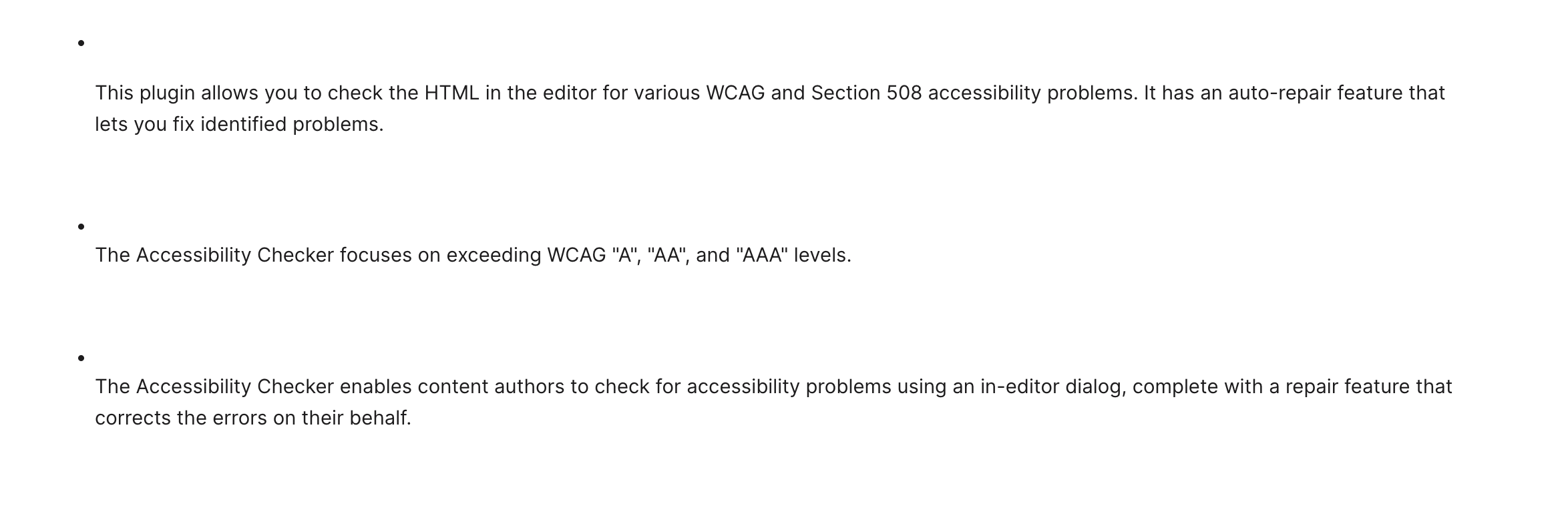
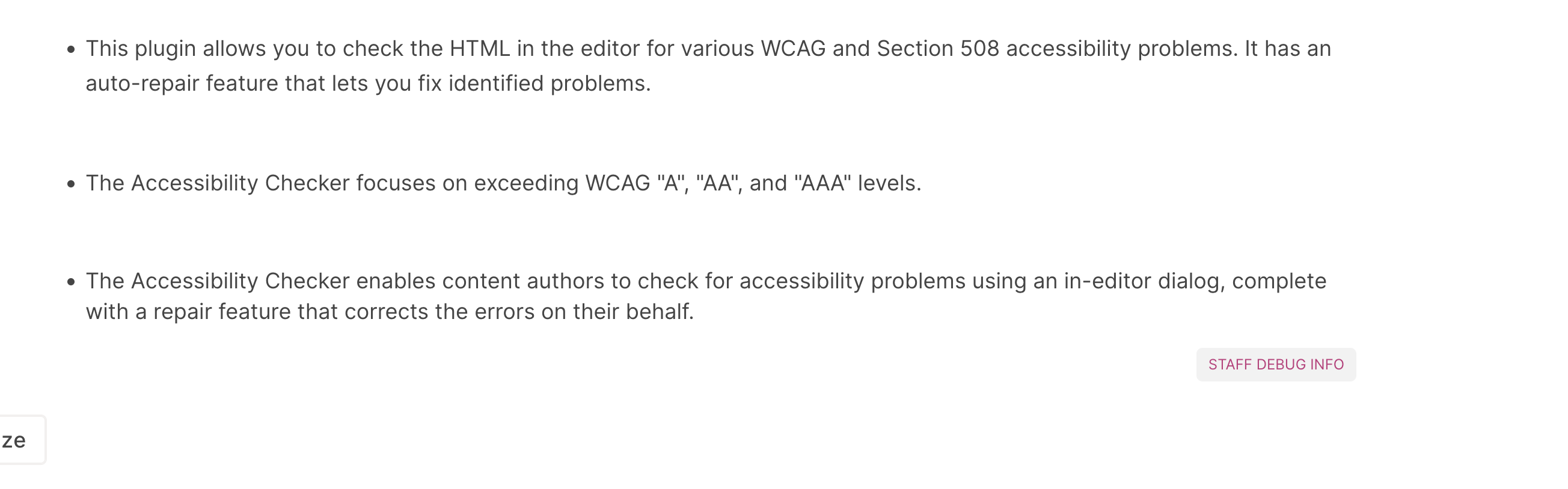
When you copy and paste content into the Text Editor, you will receive a “Paste Formatting Options” popup on the page. If you choose “Remove formatting”, then the bullets will be correctly aligned with text in both Studio and the LMS. If you select “Keep formatting”, then the formatting is unchanged and bullets and text will not be aligned in Studio or the LMS.

Below is a bulleted list example, a type of formatting that commonly needs Power Paste. If you select “Keep formatting”, this is what Studio and LMS will show:
However, if you select “Remove formatting”, this is what Studio and LMS will show:
See also
Working with Text Components (reference)
Create a Text Component (how-to)
Add an Image to a Text Component (how-to)
Add Link to Website, Course Unit, or a File (how-to)
Work with HTML Code in the Text Component (how-to)
Work with LaTeX Code (how-to)