
Manage LTI PII Sharing for a Course#
Some LTI tools require personally identifiable information (PII), such as a
learner’s username, full name, or email address. Site operators can enable the
course-level LTI PII sharing flag named CourseAllowPIISharingInLTIFlag for
a specific course in Django Admin.
Once this flag is enabled for the course:
Course teams will see settings for sharing username, full name, and email when configuring the LTI Consumer XBlock. These settings control PII sharing in regular LTI launches and Deep Linking launches.
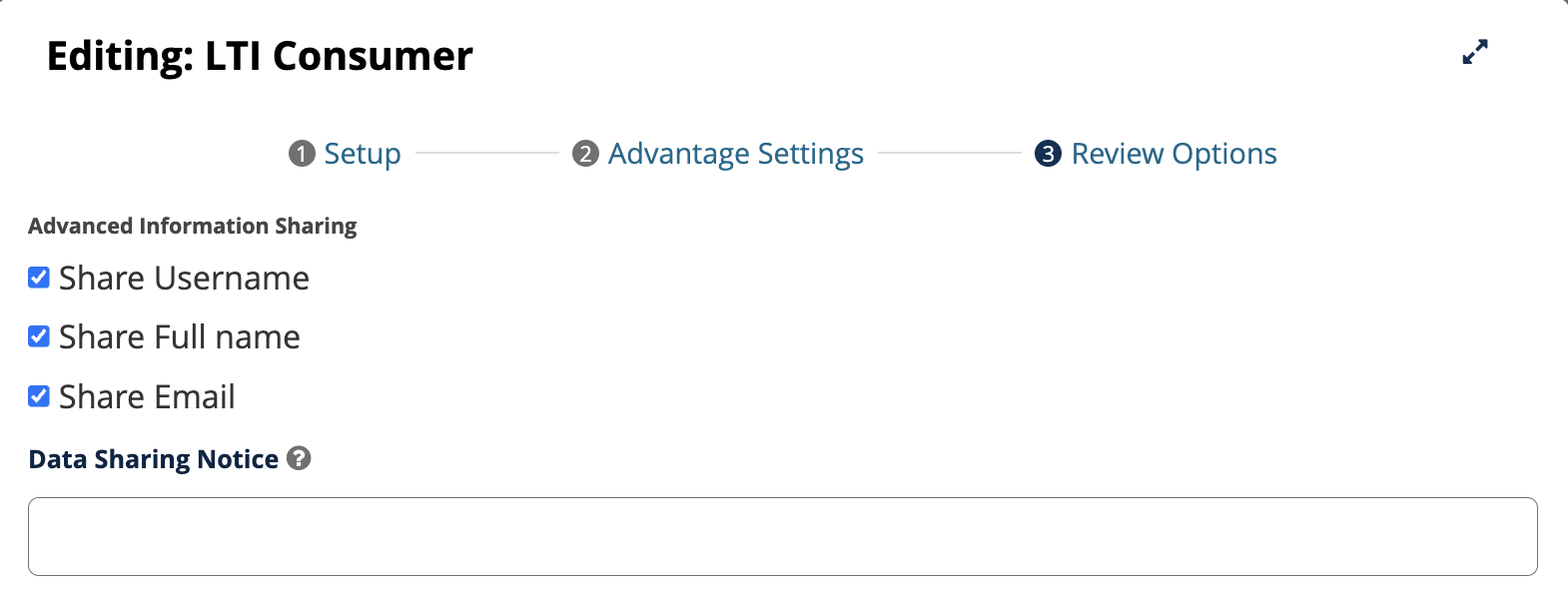
The Advanced Information Sharing section includes settings for sharing username, full name, email, and a data sharing notice.#
Learners see a consent prompt before a regular launch that shares PII. Deep Linking launches are initiated by course staff in Studio and do not display a user consent prompt.
If Names and Role Provisioning Services (NRPS) is enabled for an LTI 1.3 configuration, full name and email will be shared in NRPS responses. NRPS does not use the XBlock-level sharing settings or display a user consent prompt.
Note
The
LTI_NRPS_DISALLOW_PIIplatform setting provides a global privacy override for NRPS. When set to True, NRPS responses omit full names and email addresses even when course-level LTI PII sharing is enabled. When set to False or left unset, the course-level flag determines whether NRPS responses include this information. The setting is False by default.
For component-level configuration, see Allow Sharing PII to LTI Components.
Warning
Share only the learner information required by the LTI tool. Follow your organization’s privacy and data governance policies before you enable the course-level LTI PII sharing flag.
Enable the Course-Level LTI PII Sharing Flag#
With a system administrator account, open Studio Django Admin.
Find Course allow pii sharing in lti flags.
Open the list of flags.

Select Add course allow pii sharing in lti flag.

In the new flag form, enter the course ID for the course where course teams need LTI PII sharing.
Select Enabled.

Select Save.
After the flag is enabled, tell the course team that they can configure the LTI Consumer XBlock to share the learner information required by the tool.
Disable the Course-Level LTI PII Sharing Flag#
Before disabling the flag, ask the course team to review every LTI Consumer XBlock in the course that shares learner information. They should clear the component-level PII sharing settings and save each affected XBlock.
After the course team confirms that the settings are cleared, follow these steps.
Return to Course allow pii sharing in lti flags and open the course flag.
Clear Enabled.
Select Save.
Warning
Disabling the course-level flag does not stop PII sharing for LTI Consumer XBlocks that already have sharing settings enabled. PII continues to be included in regular LTI launches and Deep Linking launches until those XBlock settings are cleared.
If the flag was disabled before the settings were cleared, temporarily enable it so that the course team can clear and save the XBlock settings. Then disable the flag again.
Disabling the flag does stop full name and email from being included in Names and Role Provisioning Services responses.
See also
Allow Sharing PII to LTI Components (reference)
About the LTI Component (concept)
About Learner Data (concept)
Set Up an LTI 1.1 Component (how-to)
Set Up an LTI 1.3 Component (how-to)
Set Up an LTI Component Using a Reusable Configuration (how-to)
Maintenance chart
Review Date |
Working Group Reviewer |
Release |
Test situation |
2026-06-25 |
Aamir Ayub |
Verawood |
Pass |