
Configuring LTI Consumers#
For each external LMS that will consume content from your Open edX instance, you must create a Learning Tools Interoperability (LTI) consumer record in the Django admin. Each external LMS must have its own separate record.
Create a Consumer Record#
Sign in to the Django administration console at
https://{your_lms_domain}/admin.Under LTI Provider, select Add next to LTI Consumers.
Fill in the fields:
Consumer Name: A label identifying this external LMS.
Consumer Key: A unique identifier for this consumer. Generated automatically but you can also supply your own.
Consumer Secret: A secret used to sign LTI requests. Generated automatically but you can also supply your own.
Important
Leave Instance GUID blank. The external LMS generates and supplies this value on its first LTI launch.
Require user account and Use lti pii: These checkboxes control how the Open edX platform associates learners with accounts. See Authentication Modes below before deciding which to enable.
Select Save.
Share the Consumer Key and Consumer Secret with the educator or administrator who will configure the external LMS.
Authentication Modes#
When a learner launches LTI content for the first time, your Open edX instance must associate them with a user account. The two checkboxes, “Require user account” and “Use lti pii”, on the consumer record control how this happens. You can choose to use the “Anonymous (default)” mode, the “Auto-Create with Personal Information” mode or the “Require Existing Account” mode.
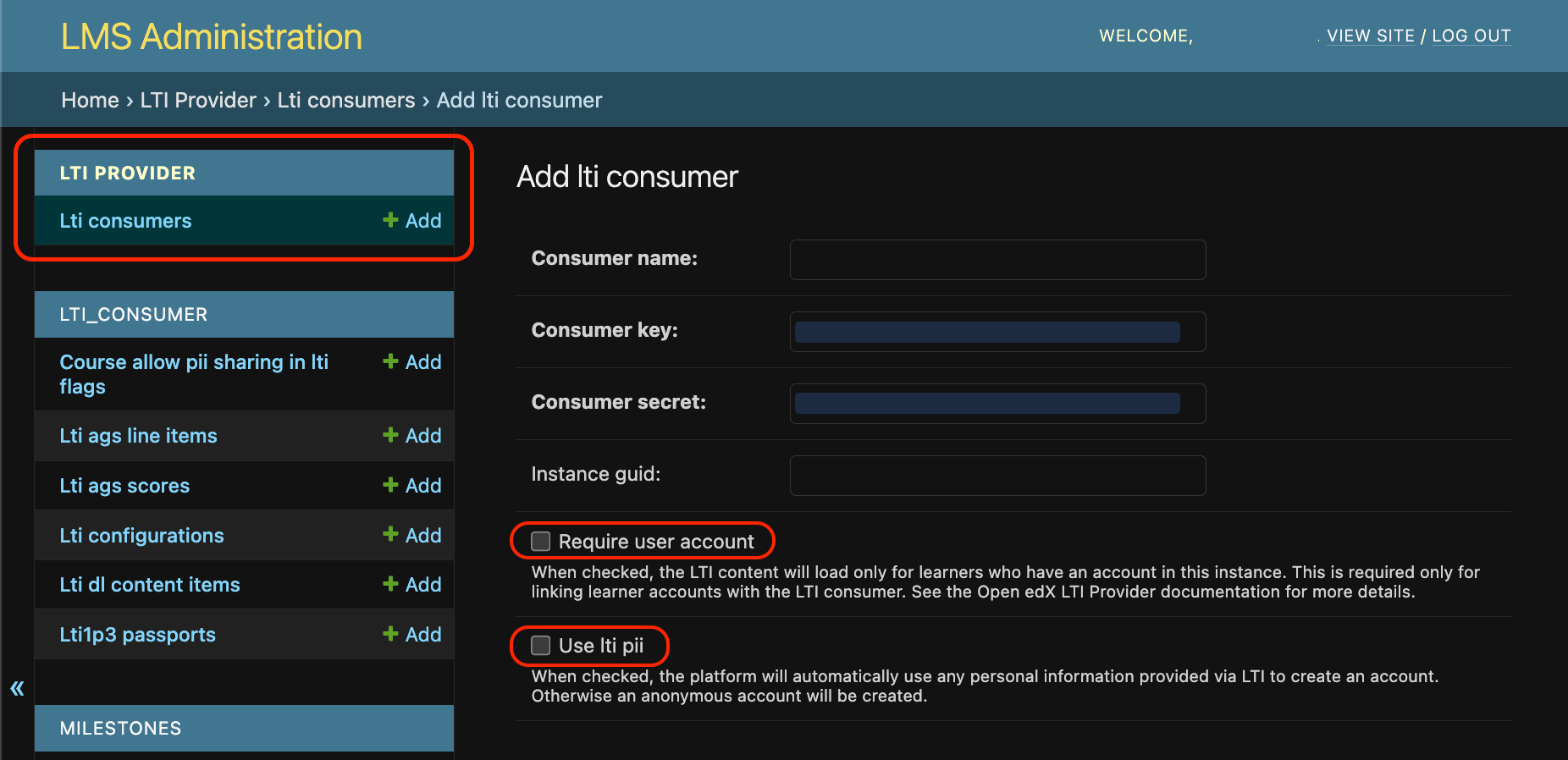
Require User Account and Use LTI PII checkboxes on the add LTI Consumer page in Django admin panel.#
Anonymous (default)#
To enable this mode, leave both Require user Account and Use lti pii unchecked.
Your Open edX instance will automatically create an account with a randomly generated username and email address. The learner sees no login prompt and the content loads immediately. This account is linked to the learner’s identity in the external LMS for grade passback.
Use this mode when you want the most seamless learner experience.
Auto-Create with Personal Information#
To enable this mode, check Use LTI PII.
Your Open edX instance will use the learner’s email address and full name from the LTI
launch request (lis_person_contact_email_primary,
lis_person_name_full) to create their account. If an account with
that email already exists, it is linked automatically instead of
creating a new one.
Use this mode when you need to associate LTI activity with real learner identities or with accounts that already exist on your Open edX instance.
The external LMS must be configured to send lis_person_contact_email_primary
in the launch request. This has been tested with Canvas LMS with the
privacy setting set to “Email Only” or “Public”.
Require Existing Account#
To enable this mode, check Require user account.
On the learner’s first LTI launch, your Open edX instance checks two conditions:
The learner is already signed into your Open edX instance in the same browser.
Their account email matches
lis_person_contact_email_primarysent by the external LMS.
If either condition is not met, the learner sees an error page with a link to the your instance’s sign-in page (Authn MFE). After signing in with the matching account, they can return to the content.
Important
The external LMS must be configured to send
lis_person_contact_email_primary. Without it, this check always
fails, regardless of whether the learner is signed in.
This check runs only on the first launch per learner. Once their identities have been linked, subsequent launches proceed without the check.
Use this mode when learners must have pre-existing accounts on your Open edX instance and you want activity tied to those accounts.
Note
If both Require User Account and Use LTI PII are checked, Require User Account takes precedence.
Delivering Content in an iframe with Require User Account#
When this option is checked and content is embedded in an iframe, browsers
may block the session cookie. The required cookie and frame settings are
already included in the Tutor plugin described in
Enable LTI Provider Functionality. Make sure to replace
<your-lti-consumer-domain> in the X_FRAME_OPTIONS setting with
your actual LTI consumer domain.
Caveats#
Enabling Require User Account only affects future LTI launches. Existing anonymous account data is not migrated.
Disabling Require User Account after it has been enabled does not unlink accounts.
Grade Aggregation Delay#
When the external LMS links to a unit or subsection (rather than a single problem), the Open edX software aggregates grades across all problems before passing them back. Individual problem components return grades immediately. The delay applies only to unit and subsection level links.
The default aggregation interval is 15 minutes. To change it, add the
following to your Tutor plugin under openedx-lms-common-settings:
LTI_AGGREGATE_SCORE_PASSBACK_DELAY = 15 * 60 # seconds
Replace 15 * 60 with your desired interval in seconds.
See also
Configuring your Open edX instance as an LTI Tool Provider (concept)
Enable LTI Provider Functionality (how-to)
Your instance as an LTI Tool Provider (concept)
Maintenance chart
Review Date |
Reviewer |
Release |
Test situation |
2026-05-06 |
Aamir Ayub |
Verawood |
Pass |
2025-06-04 |
MITx |
Teak |
Pass |