
Set Up a Reusable LTI Store#
LTI Store is an optional plugin that lets site operators define an LTI tool configuration once and make it available for reuse. Course teams reference the stored configuration from an LTI Consumer XBlock by entering its Filter key, instead of creating multiple XBlocks and entering the tool’s connection values, or duplicating the XBlocks.
Reusable configurations can be created for LTI 1.1/1.2 and LTI 1.3 tools including LTI Advantage services.
For LTI 1.1/1.2 tools, collect the tool launch URL, consumer key, and shared secret.
For LTI 1.3 tools, collect the login and launch URLs, tool keyset URL or public key, any required redirect URIs, and the list of LTI Advantage services that the tool supports.
Install the LTI Store Plugin#
Install the plugin from the LTI Store repository.
Follow the plugin README to enable it for your environment.
Rebuild and restart your platform. Apply the plugin’s documented Tutor config, images rebuild, and services restart steps.
For non-Tutor installations, follow the non-Tutor installation instructions.
Grant Staff Access for LTI Store Administration#
To create and manage reusable configurations, grant the administrator account the minimum Django Admin access required for LTI Store.
Enable
is_stafffor the account.Assign permissions for the LTI Store models.
Avoid granting superuser access when model-level permissions are sufficient.
Enable Reusable Configurations#
The LTI Consumer XBlock loads configurations provided by LTI Store only when
the lti_consumer.enable_external_config_filter CourseWaffleFlag is enabled.
This flag defaults to False.
To enable reusable configurations for all courses, create or update the
standard Waffle flag named lti_consumer.enable_external_config_filter and
enable it for everyone. To enable reusable configurations for an organization
or an individual course instead, follow these steps.
In the LMS Django Admin, open Waffle flag org overrides or Waffle flag course overrides under Waffle Utils.
Add an override with the following values.
Set Waffle flag to
lti_consumer.enable_external_config_filter.Enter the organization name or course ID.
Set Override choice to Force On.
Select Enabled.
Save the override.
A course-level override takes precedence over an organization-level override. An organization-level override takes precedence over the standard Waffle flag and its default value.
Create a Reusable LTI Configuration#
Open Django Admin.
Navigate to
/admin/lti_store/externallticonfiguration/.Select Add External LTI Configuration.

Enter Name for the configuration.
Slug is automatically generated from the name.
Select the LTI Version used by the tool.
Enter the values required for the selected LTI version. For LTI 1.1/1.2, enter:
Launch URL
Client Key
Client Secret
For LTI 1.3, enter:
Client ID
Deployment ID
OIDC URL
Launch URL
Private Key in PEM format (generate according to your organization’s security policy paste in this field. You may use IMS LTI Reference Implementation.)
Tool Public Key OR Tool Keyset URL
Redirect URIs, if required by the tool
(Optional) Enable Names and Role Provisioning Services
(Optional) Enable Deep Linking
(Optional) Deep Linking Launch URL. If Deep Linking is enabled, enter the URL provided by the tool. If the tool does not provide a separate URL, use the tool’s launch URL.
(Optional) Set Assignment and Grade Services mode

Select the tool’s LTI version and enter the corresponding values to create a reusable LTI configuration.#
Save the configuration.
After saving, note the Filter key displayed on the External LTI Configurations screen.
The Filter key usually has the form
lti_store:slug.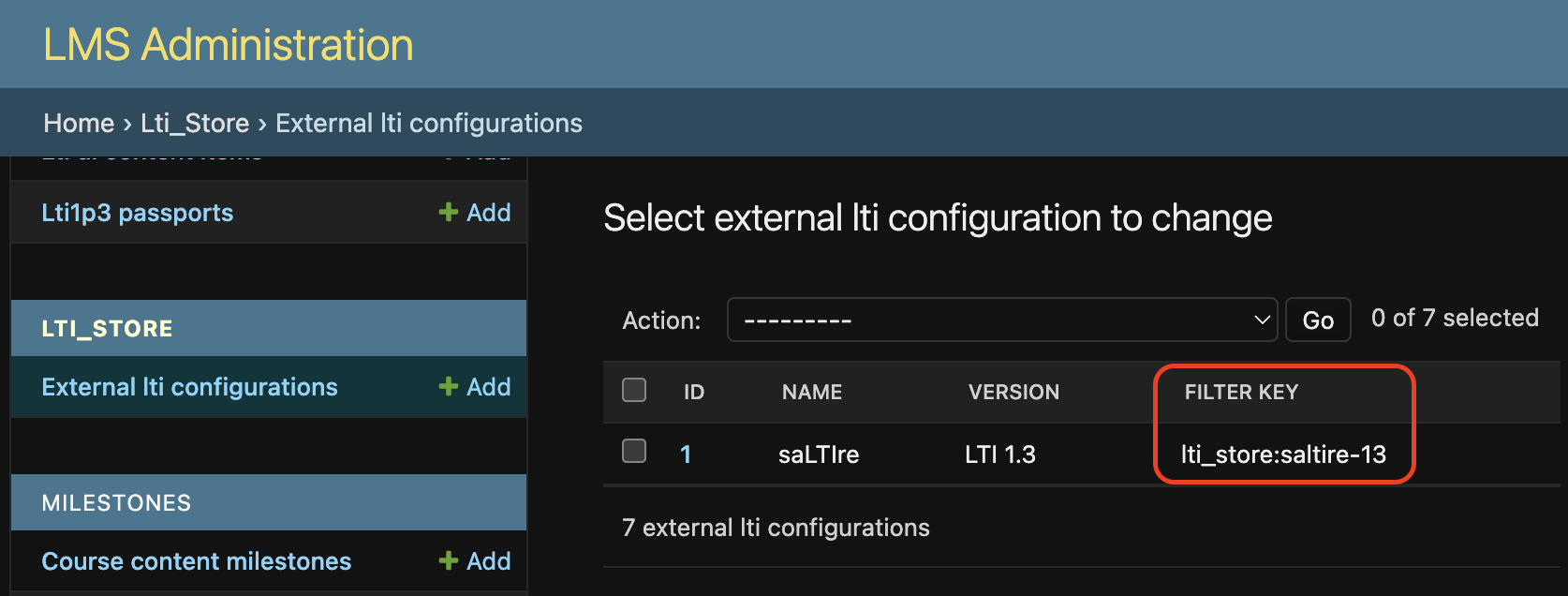
Copy the value in the Filter key column to share with the course team.#
For LTI 1.3, coordinate with the course team to register the Open edX platform with the external tool. This registration is shared by the XBlocks that use the same reusable configuration and needs to be completed only once. For the educator workflow, see Step 2: (For LTI 1.3) Register Your Open edX Instance with the Tool.
Allow Launch URL Override#
By default, every LTI Consumer XBlock that references a reusable configuration uses the launch URL stored in that configuration. For LTI 1.3 tools, you can allow course teams to enter a different launch URL in each XBlock while sharing the other registration and connection values.
Enable lti_consumer.enable_external_multiple_launch_urls by using the same
global, organization, or course-level method described in Enable Reusable Configurations. This CourseWaffleFlag defaults to False. This feature
requires xblock-lti-consumer 9.14.1 or later.
When the flag is enabled, Studio displays the Launch URL field for affected XBlocks. A nonempty value in this field overrides the launch URL from the reusable configuration. If the field is empty, the XBlock uses the launch URL from the reusable configuration.
Next Steps#
After you create the reusable configuration and share the Filter key, course teams can add the LTI Consumer XBlock in Studio and configure it to use the stored configuration. For more information, see Set Up an LTI Component Using a Reusable Configuration.
See also
Set Up an LTI Component Using a Reusable Configuration (how-to)
Set Up an LTI 1.1 Component (how-to)
Set Up an LTI 1.3 Component (how-to)
LTI Advantage Services (reference)
Manage LTI PII Sharing for a Course (how-to)
Your instance as an LTI Tool Provider (concept)
Maintenance chart
Review Date |
Working Group Reviewer |
Release |
Test situation |
2026-06-25 |
Aamir Ayub |
Verawood |
Pass |
2025-12-05 |
LTI WG |
Ulmo |
Pass |